QuickStart — get VibeCoded Orchestrator running in 10 minutes
Local-first knowledge orchestrator for AI coding workflows. Open source. Runs entirely on your machine.
What is VCO?
VibeCoded Orchestrator (VCO) runs in the background while you work in VS Code with the Claude Code extension. It indexes your knowledge, codebase, and tool calls so Claude has persistent memory and code-aware retrieval, without changing how you work.
VCO works with any Claude Code client that reads the project's .claude/ folder. VS Code with the Claude Code extension is the primary target; the standalone CLI and other compatible clients work the same way.
Open source (AGPL-3.0). No cloud dependency.
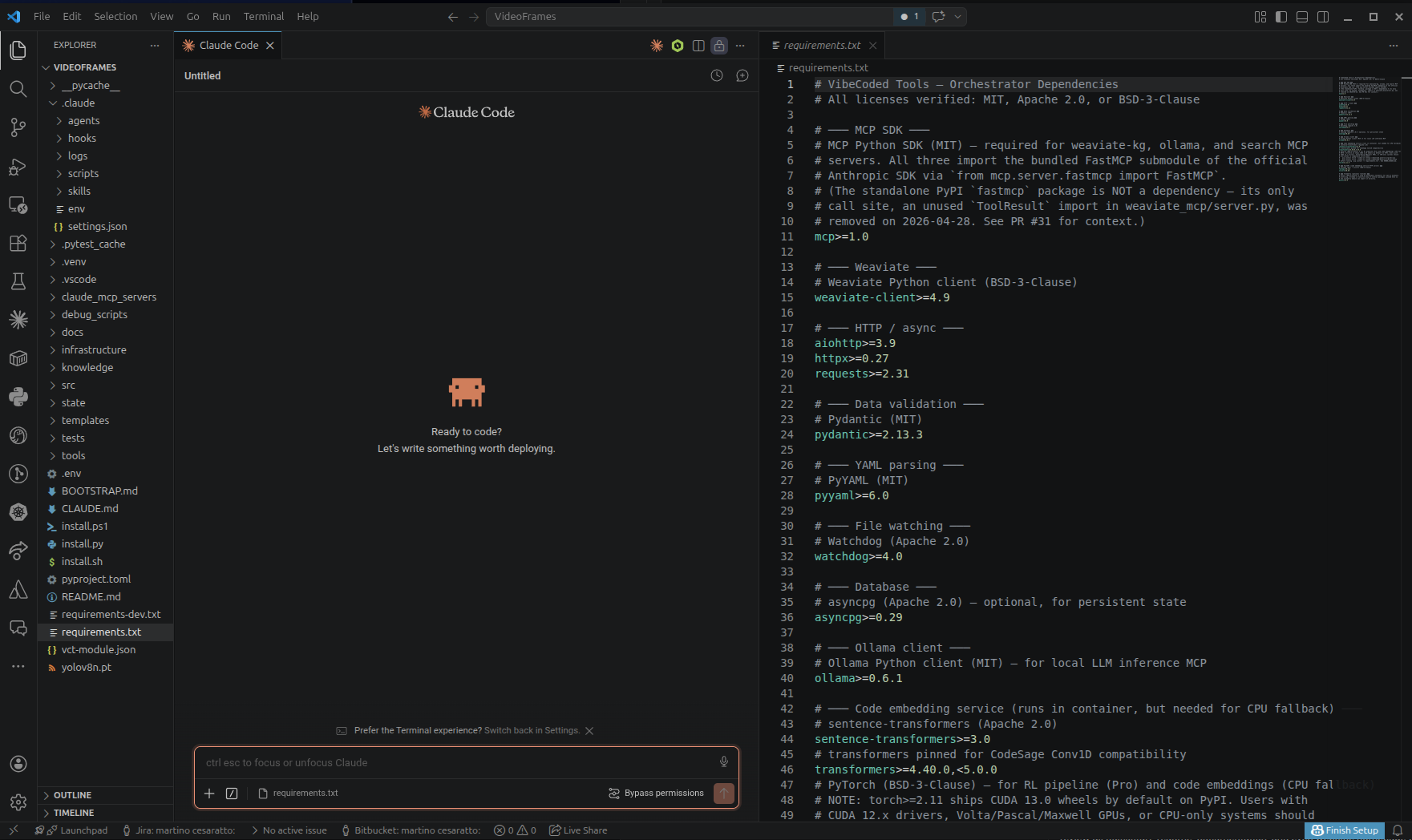
.claude/ folder automatically.Prerequisites
| What | Why | Check with |
|---|---|---|
| Python 3.11+ (3.12 recommended) | Orchestrator + MCP servers | python3 --version |
| Docker or Podman | Runs Weaviate, Ollama, code-embedding service | docker --version or podman --version |
| Claude subscription (Pro / Max / Team / Enterprise) | Required to authenticate Claude Code | login at claude.ai |
| (optional) Node.js 18+ | Only if building the launcher GUI from source | node --version |
| (optional) Claude Code CLI | Used to summarize new KG nodes; if absent, VCO falls back to Ollama with a hardware-appropriate local model | claude --version |
The first-install.* script auto-detects what's missing and offers to install it. On Linux it'll ask for sudo to install system packages.
How to install the prerequisites on Windows / macOS / Linux (click to expand)
Skip this if you already have what you need. Links point to official pages — verify versions and signatures before running any installer.
Step 1 — Get the code
A. Clone the repo (recommended for contributors)
cd ~/dev    # or wherever you keep your code
git clone https://github.com/hotak92/vibecoded-orchestrator.git
cd vibecoded-orchestrator
B. Download a release archive (recommended for install)
Each release ships a full per-OS archive on Releases: vibecoded-orchestrator-0.2.21-linux-x64.tar.gz, vibecoded-orchestrator-0.2.21-macos-arm64.tar.gz, vibecoded-orchestrator-0.2.21-windows-x64.zip. Each archive bundles the launcher, the vco CLI, the vct-hub binary, the Python MCP stack, templates (agents, skills, hooks), and install scripts — no git clone required. Extract, then double-click first-install.{sh,command,desktop,bat}. A .sha256 sidecar is published alongside every archive; the launcher and hub binaries are SLSA-attested:
gh attestation verify <downloaded-binary> --repo hotak92/vibecoded-orchestrator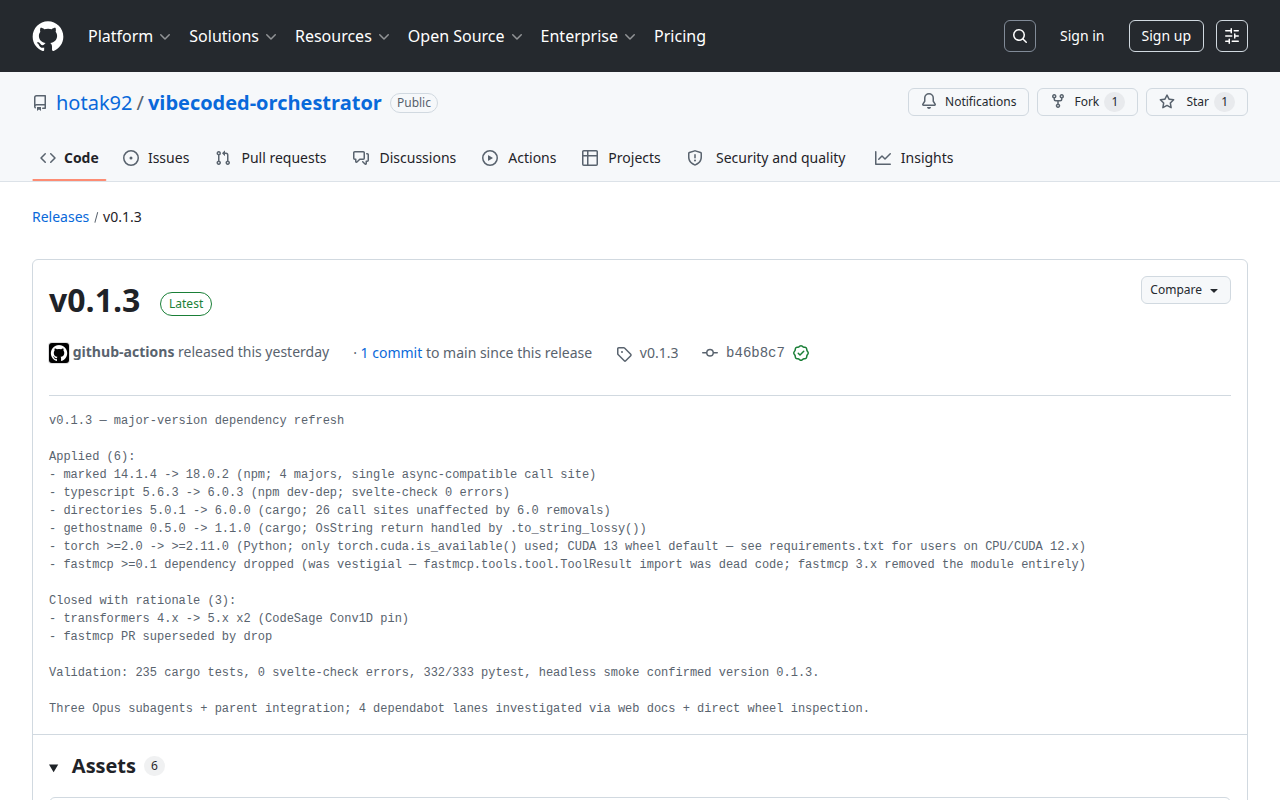
Step 2 — Run the installer
One command. The installer detects missing dependencies, prompts before installing system packages, and bootstraps the orchestrator's Python venv plus container services.
bash first-install.sh(or double-click first-install.desktop from your file manager — some DEs require enabling "Run executable text files" first)
The installer takes 5–10 minutes plus first-run image downloads (~5 GB).
Step 3 — Launch the orchestrator
The installer doesn't auto-start the launcher. Once first-install prints [install] done, manually start the launcher GUI from the same folder you ran the installer in. That's where you register projects, manage secrets, and check service health.
cd ~/dev/vibecoded-orchestrator   # the directory you cloned into
bash start-launcher.sh
Or double-click start-launcher.desktop from your file manager.
./launcher/dist/linux-x64/vct-launcher directly. That path only exists inside the VCO source repo, not your install target. Use start-launcher.sh (or .bat / .command) instead. That's the entry point the installer creates in your install folder. If the installer didn't create one, your install didn't complete; re-run first-install.A native GUI window opens.
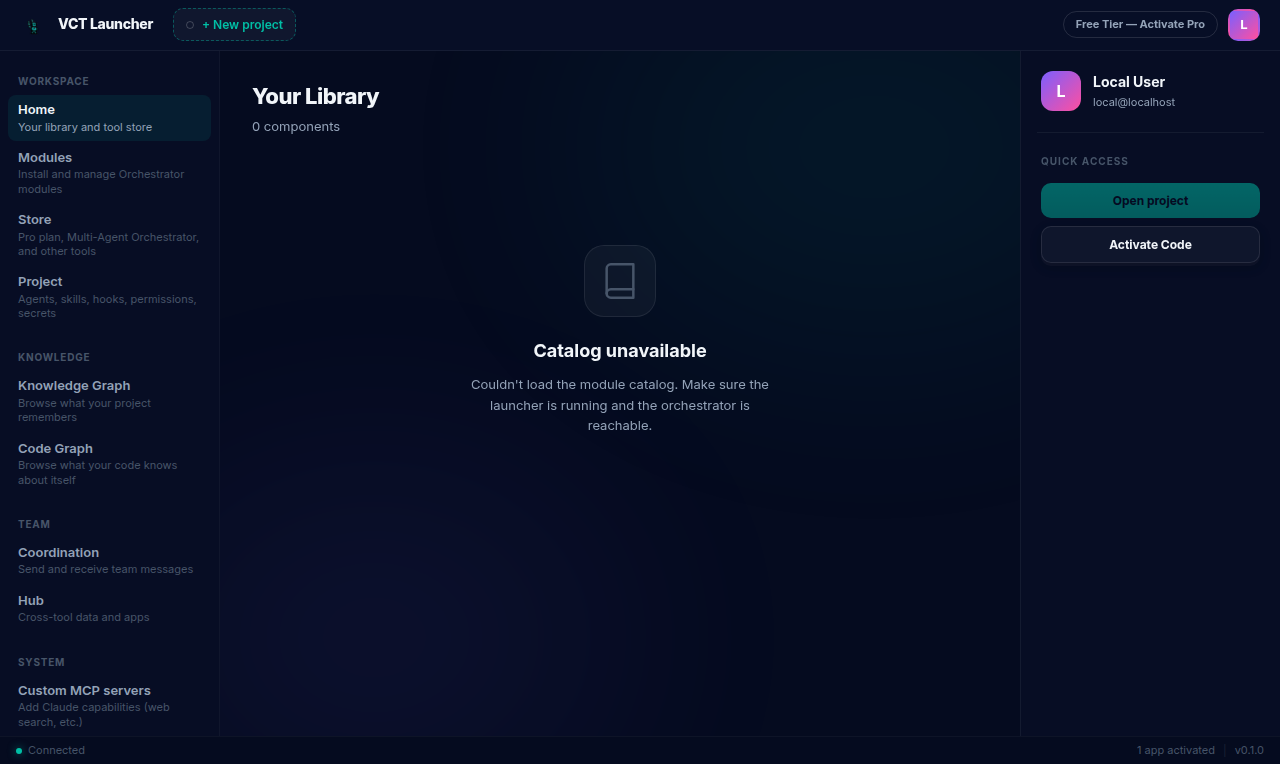
bash scripts/build-bundled-launcher.sh and restart.Step 4 — Walk through the wizard
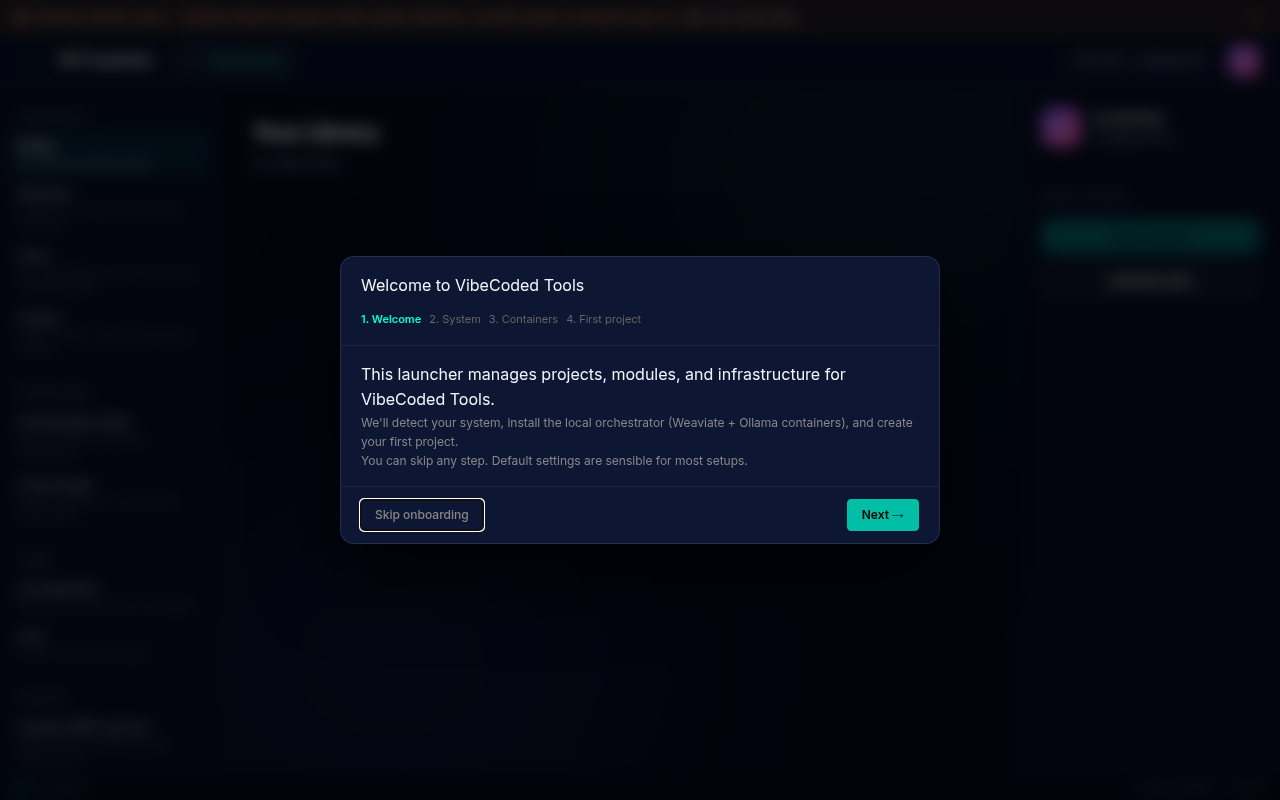
On first launch, the OnboardingWizard guides you through 5 steps. The wizard appears automatically; subsequent launches go straight to your library.
4a. Welcome (step 1 of 5)
A quick intro to what VCO does. Click Next → to continue.
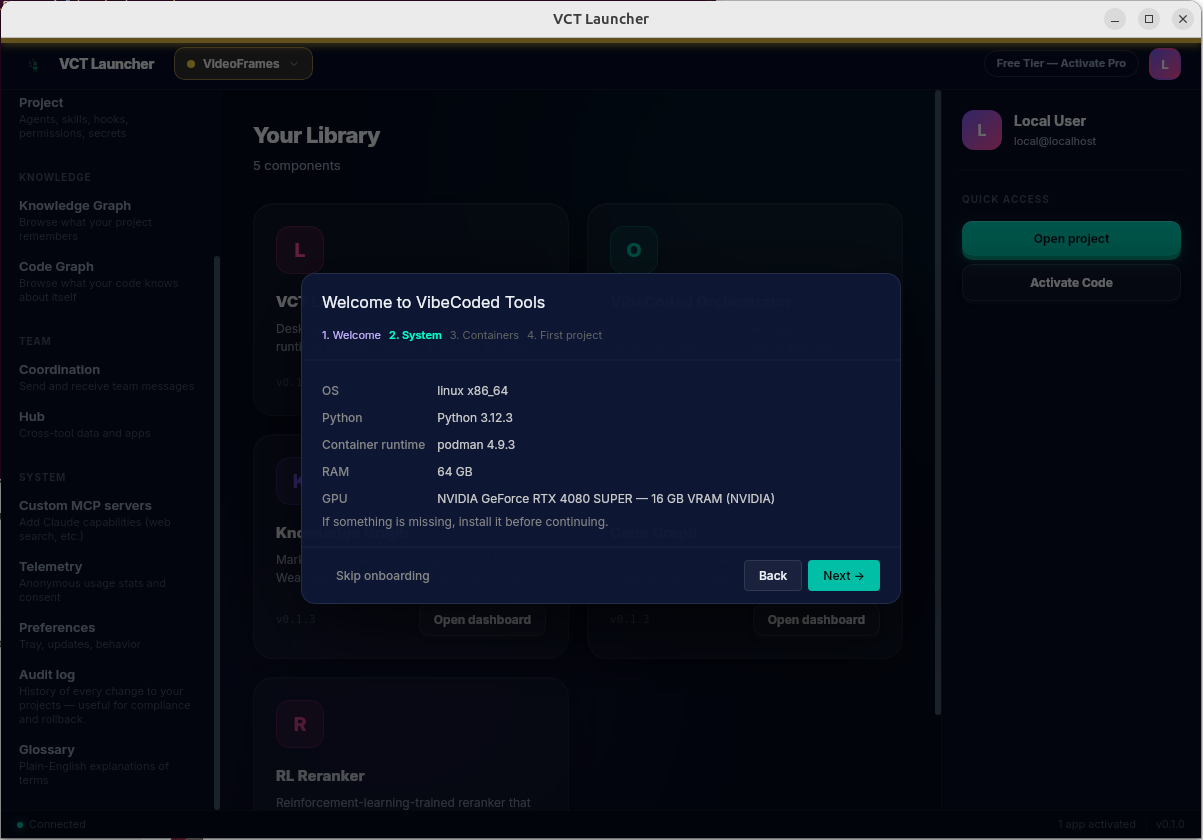
4b. System (step 2 of 5)
The wizard probes your system: Python version, container runtime (Docker or Podman), GPU detection, available RAM/VRAM. Most users see all green ticks. If something's missing, the wizard tells you what to install. Click Next → when everything you need is detected.
4c. Containers (step 3 of 5)
The wizard installs VCO's Python venv into your source repo. The install path is auto-detected from where you cloned, not user-pickable. The page shows it read-only: "Installing into /your/clone/path (your source repo)".
It also probes for the shared services and offers to start them if missing:
- Weaviate — vector DB for KG and code graph search
- Ollama — local LLM inference and embeddings
- code_embed (optional, GPU-only) — CodeSage-Large-v2 for higher-quality code embeddings
If services are already running (e.g. you have a VCO install elsewhere on this machine), the wizard reuses them — same data, no double-install. The "Use separate containers for this install (advanced)" toggle is for power users who want full isolation.
The container volumes location is shown for transparency. Click Install when ready, confirm in the modal, then Next → once services are up.
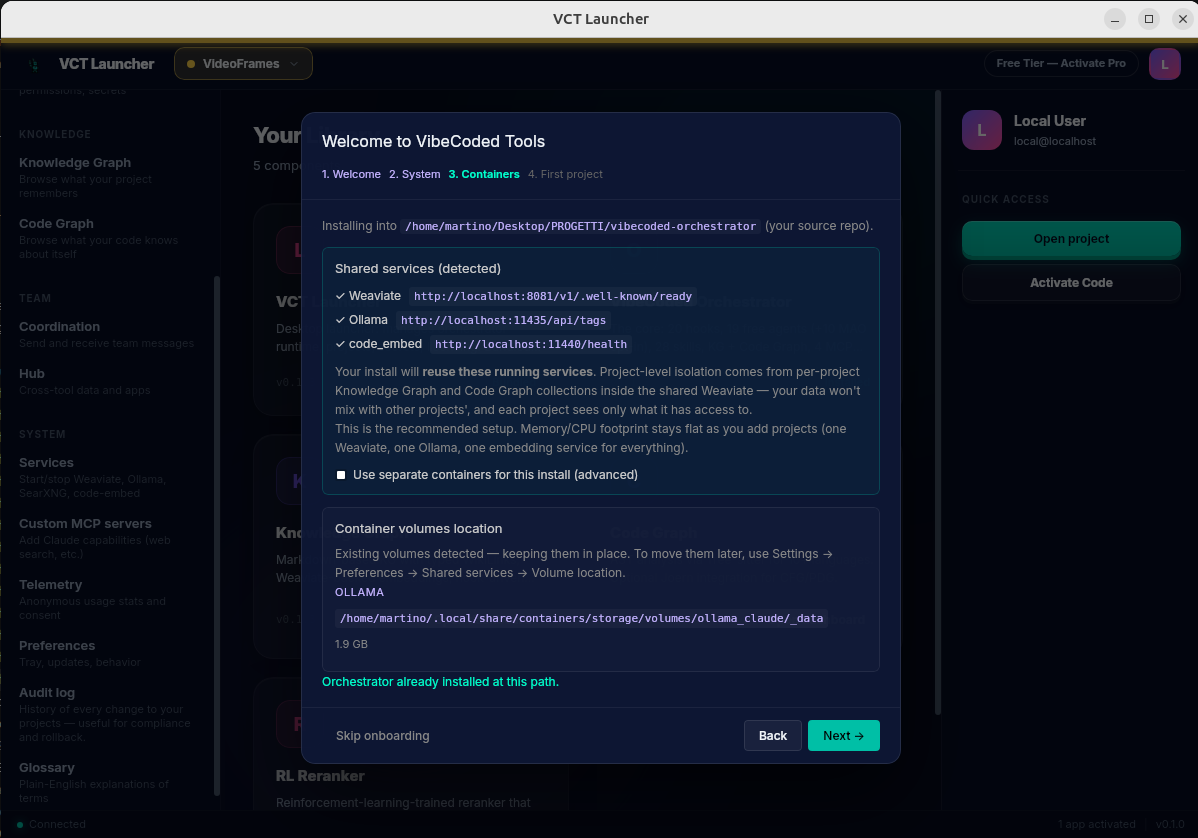
/home/.../vibecoded-orchestrator") with no user-pickable Browse field. Shared services are detected and reused; "Orchestrator already installed at this path" footer appears when the install is up to date.4d. First project (step 4 of 5)
This is where you register your first project. Enter:
- Project name: a friendly label (e.g.
test-project) - Project folder: an absolute path to an existing project directory. Click Browse… to pick one.
- (optional) GitHub token: a read-only PAT (
public_reposcope) gives the launcher 5000 API requests/hour for fetching newer orchestrator versions; without it you get 60/hour anonymous.
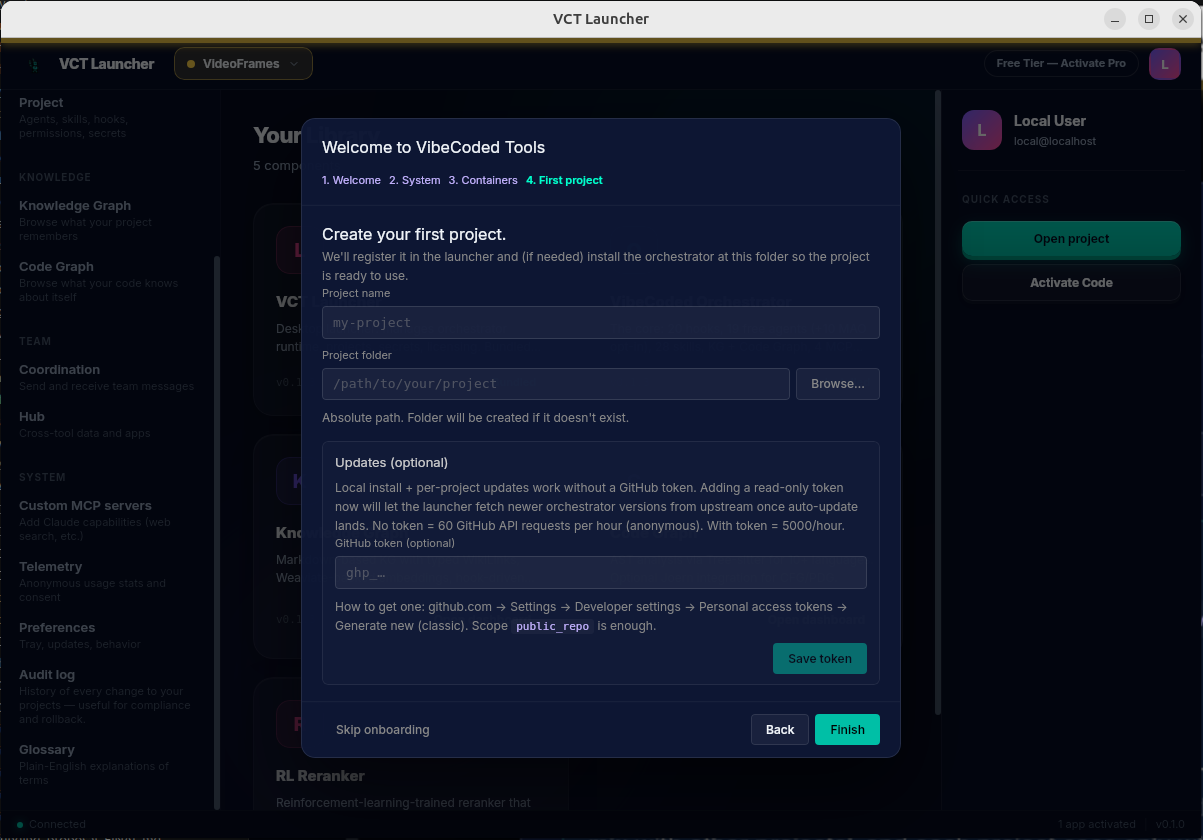
Click Finish. The wizard registers the project, sets up its KG and code-graph collections in Weaviate, and writes per-project state to ~/.vct/launcher.db. Immediately after, the launcher fans out three background tasks against the freshly-registered project: code-graph build, KG sync (knowledge/**/*.md + docs/**/*.md → Weaviate via kg-sync --all), and KG summaries (generate-kg-summary.py per node, fallback chain claude CLI → Ollama → ANTHROPIC_API_KEY → silent skip). Each surfaces a banner under the project header: pending / running / failed stay visible, success / skipped auto-hide 30 s after they complete. The three header buttons (Re-build code graph, Re-sync KG, Re-build KG summaries) re-run each task on demand. If the launcher crashes mid-run, the next boot marks any running rows as failed with "launcher crashed mid-run; click Retry to re-run" — no silent re-spawn.
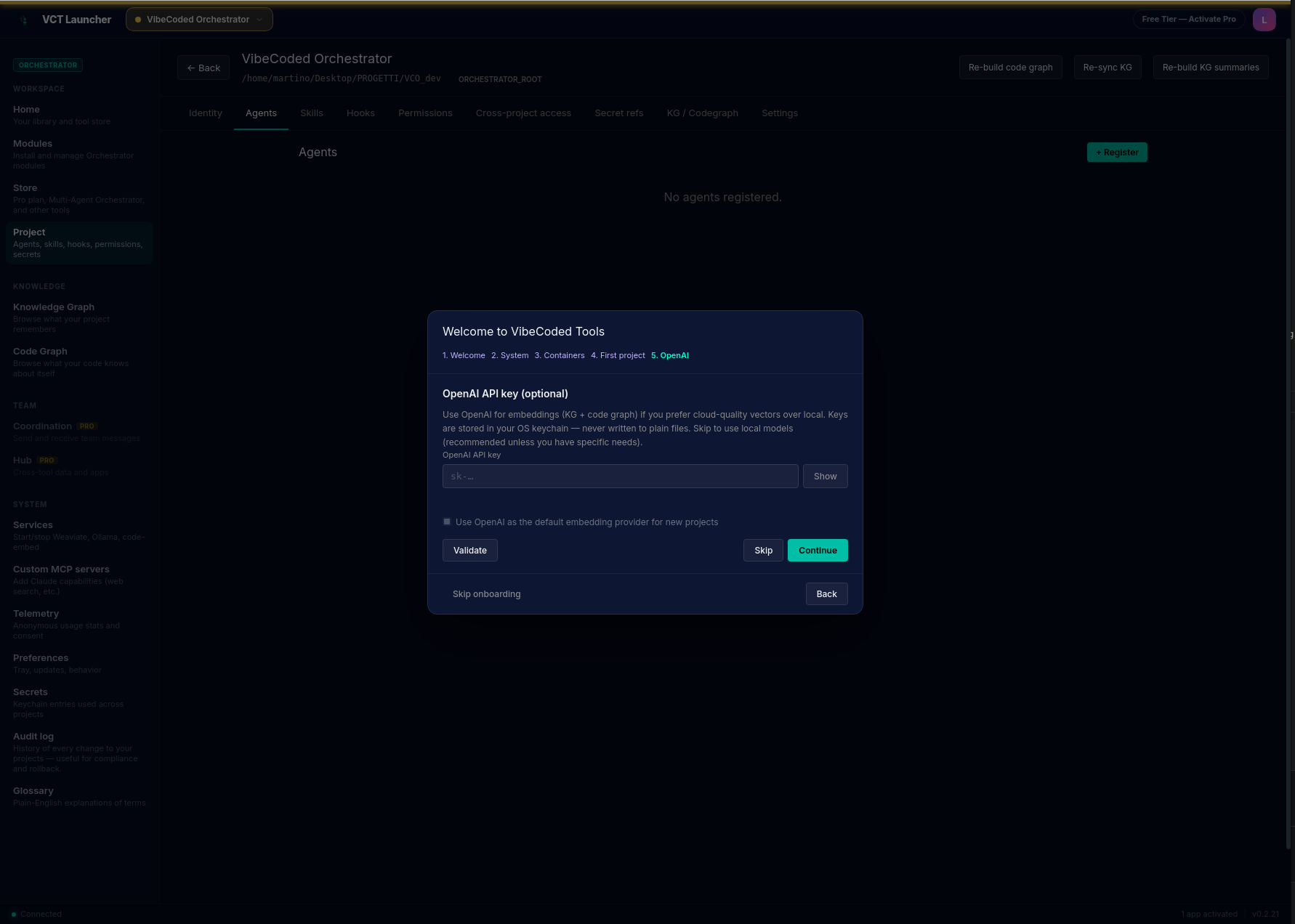
4e. OpenAI key (step 5 of 5, optional)
A skippable step for installs that want OpenAI as the embedding provider. VCO defaults to local: qwen3-embedding:0.6b for text (1024-dim, via Ollama) and codesage-large-v2 for code (GPU, 2048-dim; chained fallback to qwen3-embedding:0.6b → jina-embeddings-v2-base-code when the code-embed service or GPU isn't available). To use OpenAI instead: paste the API key (password-masked input), click Validate (free probe against /v1/models — no tokens consumed, no billing entry), and tick "Use OpenAI as the default embedding provider for new projects". The key goes into your OS keychain; the launcher re-validates it on every startup and auto-falls-back to local models if it ever turns invalid, restoring OpenAI when it comes back. Click Finish (or Skip).
Step 5 — Verify everything works
After Finish, you land on the Library home with your new project listed. Click the project card to open its dashboard.
Now open Claude Code in the project folder:
cd ~/dev/test_project
claude
(or open the folder in VS Code with the Claude Code extension installed)
Recommended Claude Code session settings
Before your first session in this project, open the Claude Code command palette (Cmd/Ctrl + K) and configure the Model section. The right setting depends on which model you're using:
- Opus 4.6 / Sonnet 4.6 and earlier: Effort →
Max, Thinking → Off. Fixed-budget thinking on these models adds latency without measurable retrieval gain when VCO's hooks already inject heavy per-turn context. Max effort gives the model headroom to reason about that context properly. - Opus 4.7: Effort →
highby default — it's the right setting for KG curation, code-graph queries, and most VCO workflows. Usexhighonly when you need creativity (brainstorming, generative design, exploring alternatives): on technically complex tasksxhightends to introduce more hallucinations thanhigh. The Thinking toggle is a no-op on 4.7 — leave it. Why not Max here: 4.7 uses adaptive thinking governed by effort level, so Max often spends more thinking budget than VCO workflows benefit from.
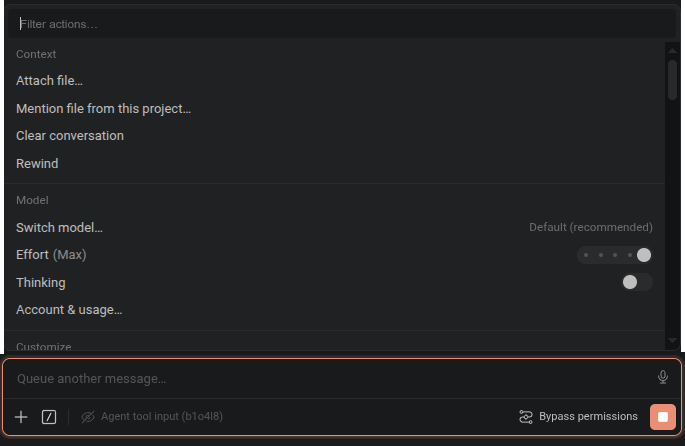
/effort max (4.6) or /effort xhigh (4.7) at session start, or CLAUDE_CODE_EFFORT_LEVEL=max / =xhigh in your shell rc. To disable fixed-budget thinking on 4.6 set CLAUDE_CODE_DISABLE_ADAPTIVE_THINKING=1 (no-op on 4.7).Edit any file in the project. The orchestrator's hooks fire in the background, silently — no toast or log line in the launcher window. What they do:
- Knowledge Graph (continuous, hook-driven): when you write or edit a
knowledge/**/*.mdfile, the markdown is auto-chunked, embedded with the configured embedding model, and synced into a Weaviate collection (default name:<ProjectName>_KnowledgeGraph). Claude Code can immediately search it viahybrid_searchfrom the bundledweaviate-kgMCP. The same KG can be markedshared(other projects can read+write) orarchive(read-only) via the per-project KG / Codegraph tab. - Code Graph (incremental + manual full rebuild): indexes every module / class / function / API / cross-service call in your project. The
post-file-edithook triggers an incremental update for any edited code file (debounced 120s, runscode-graph-incremental.shin the background — handles .py, .ts/.tsx, .js, .rs, .go, .java, .cpp, .rb, .cs, etc.). For a full re-index — e.g. after a big refactor or first onboarding an existing project — use the per-project Re-build code graph button or.claude/scripts/code-graph-analyze .from the project root. - Other hooks:
ruffandpyrighton Python writes, credential scanner on every file, cost tracker per Claude session, the newkg-update-nudgethat prompts you to write KG nodes after 150k tokens of un-recorded work. All silent unless something needs your attention.
Two places to manage KG/Codegraph: per-project (binding) vs. machine-wide (access)
The launcher exposes KG/Codegraph configuration in two distinct places, each for a different job:
- Per-project tab —
Project → KG / Codegraph. This is where you configure the binding for the active project: role (primary/shared/archive), Weaviate collection name, embedding model, Weaviate URL. Most users only touch this once on day one; the wizard pre-fills sensible defaults. Covered in Step 6 below. - Top-level routes —
/kgand/codegraph. These are cross-project access dashboards. Each shows every Weaviate KG collection or code-graph index on the machine as a card, with an access badge (READ/WRITE/NONE) describing the active project's access to that collection, plus Browse and Access… buttons. A separatesharedbadge marks collections that are shared between projects. Use these dashboards when you want one project to read from another's KG, e.g. a shared "personal notebook" collection that several projects write to. Day-to-day, agents read the right collection automatically based on the per-project binding, so most users rarely need these dashboards.
Common flows
- Change which collection a project uses: Project tab → KG / Codegraph subtab → edit the binding → Save.
- Let project A read project B's KG: top-level
/kg→ find B's collection card → Access… → grant.
knowledge/concepts/test.md in your project) and within ~5 seconds run hybrid_search("test") from a Claude Code session. If the new node comes back, hooks are working. Detailed per-session logs live at ~/.claude/logs/; the orchestrator's own log is at state/logs/.Step 6 — Configuration tour (post-wizard)
Once your project is registered, click its card on the Library home to open the per-project settings page. Each project has its own configuration with seven tabs.
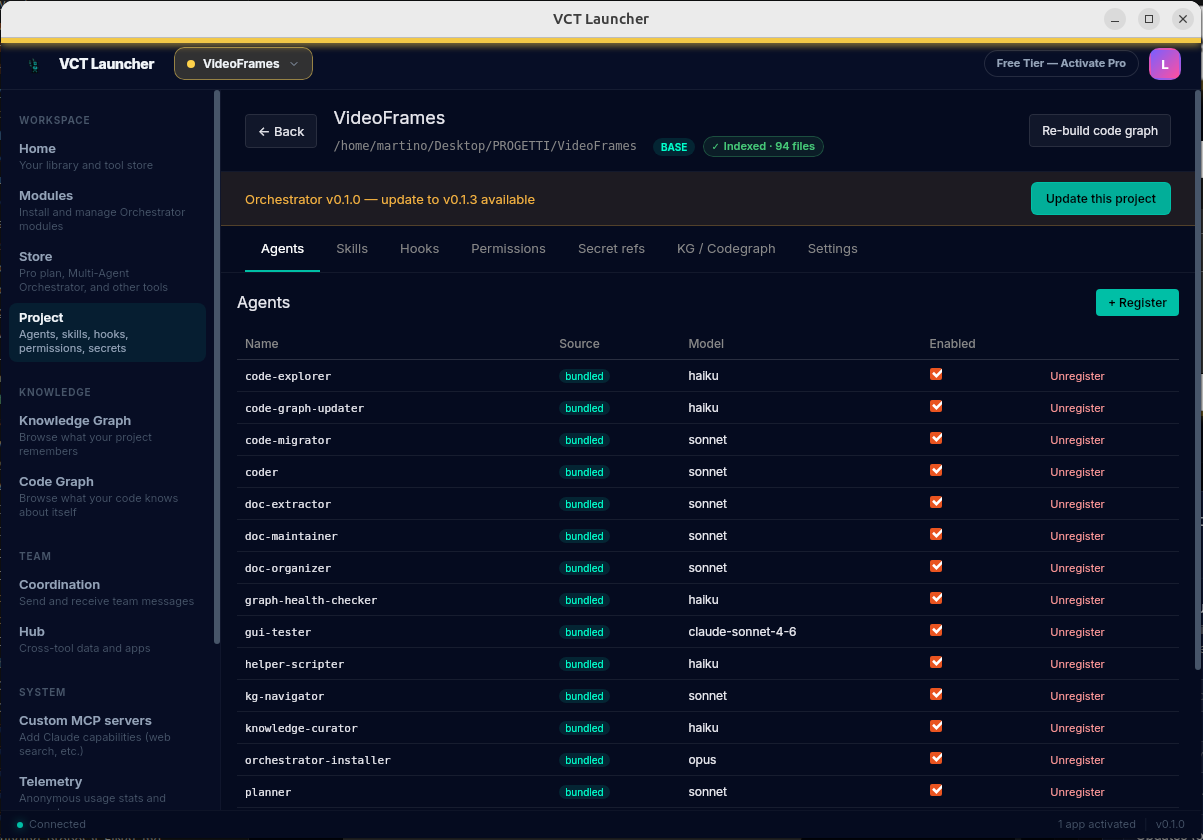
Agents tab — what runs in your project
The launcher ships 45 bundled Claude Code agents (code-explorer, coder, planner, gui-tester, doc-organizer, etc.). The Agents tab toggles them on/off per-project and registers your own custom agents.
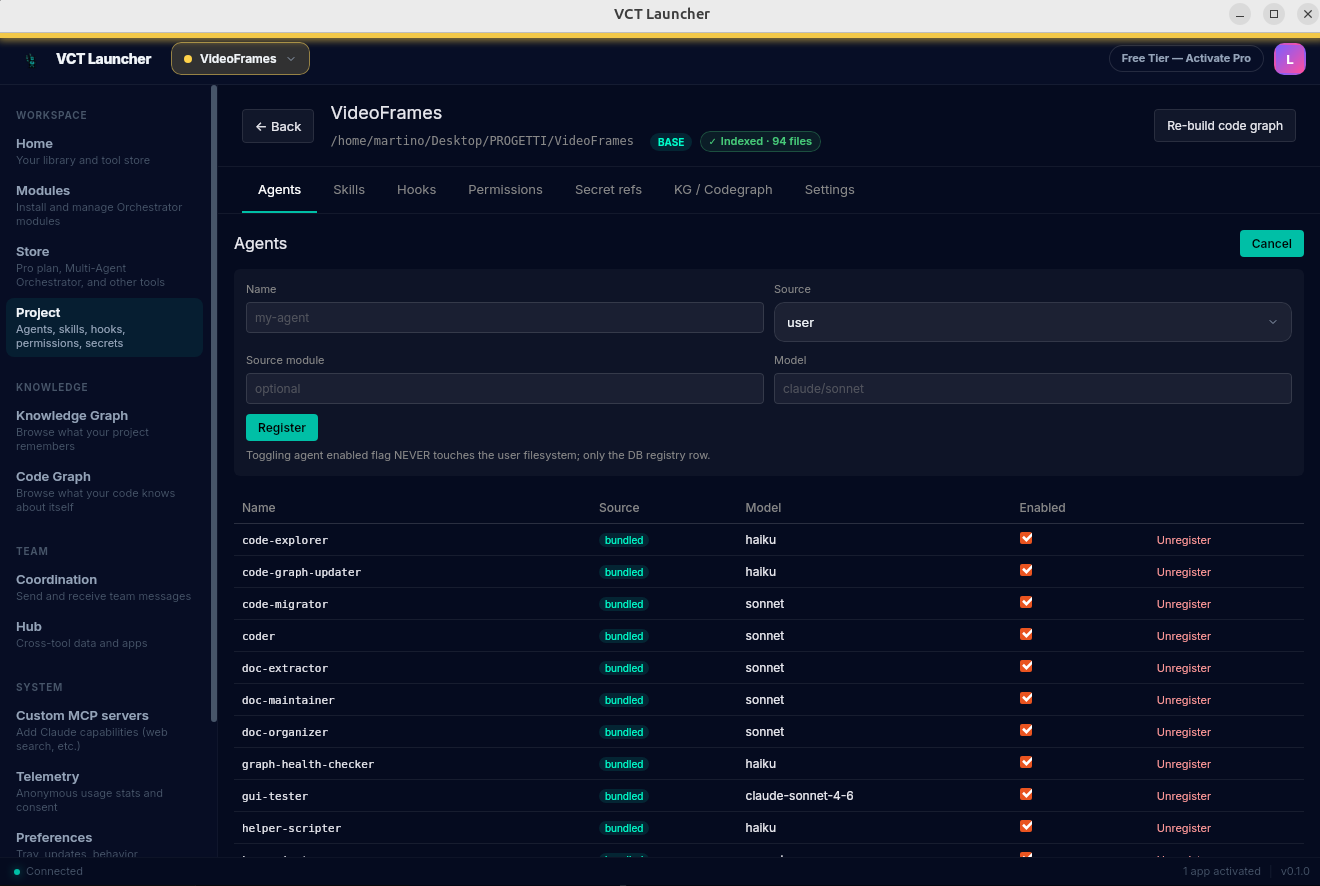
user for your own, bundled for ones shipped by VCO), optional Source module, Model (e.g. claude/sonnet, claude/haiku, claude/opus).Skills tab — slash commands
Same pattern as Agents but for slash-command skills (/architect, /tdd, /api-designer, /security-reviewer, etc.). 52 skills ship bundled.
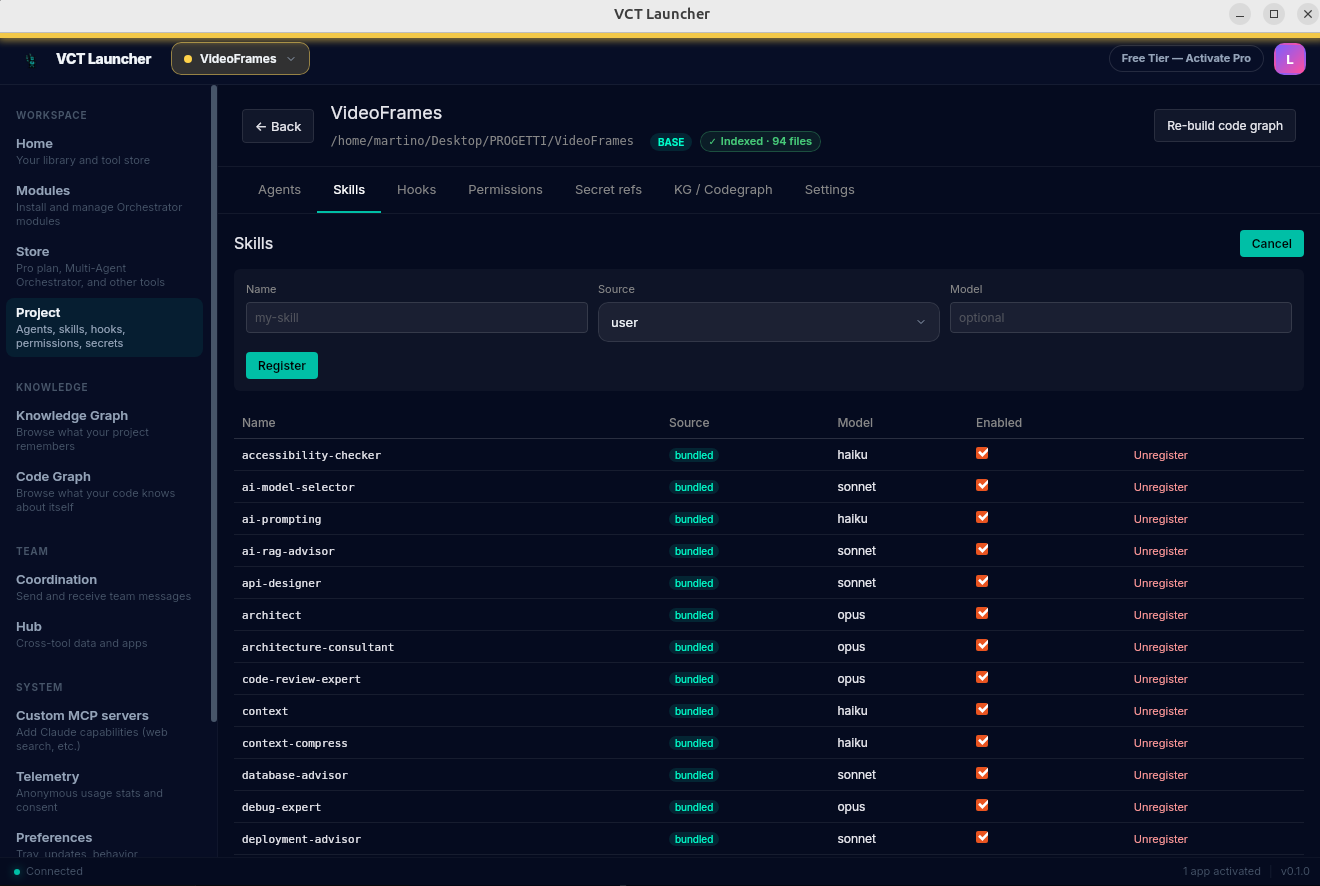
/architect defaults to opus).Hooks tab — automations that fire on every tool call
Per-project hook registry. 27 bundled hooks auto-fire on tool calls: file edits sync to KG, syntax checks run on writes, credential scans, KG-update nudges every 150k tokens, and more. Disable individual hooks per-project if any are noisy in a particular workflow.
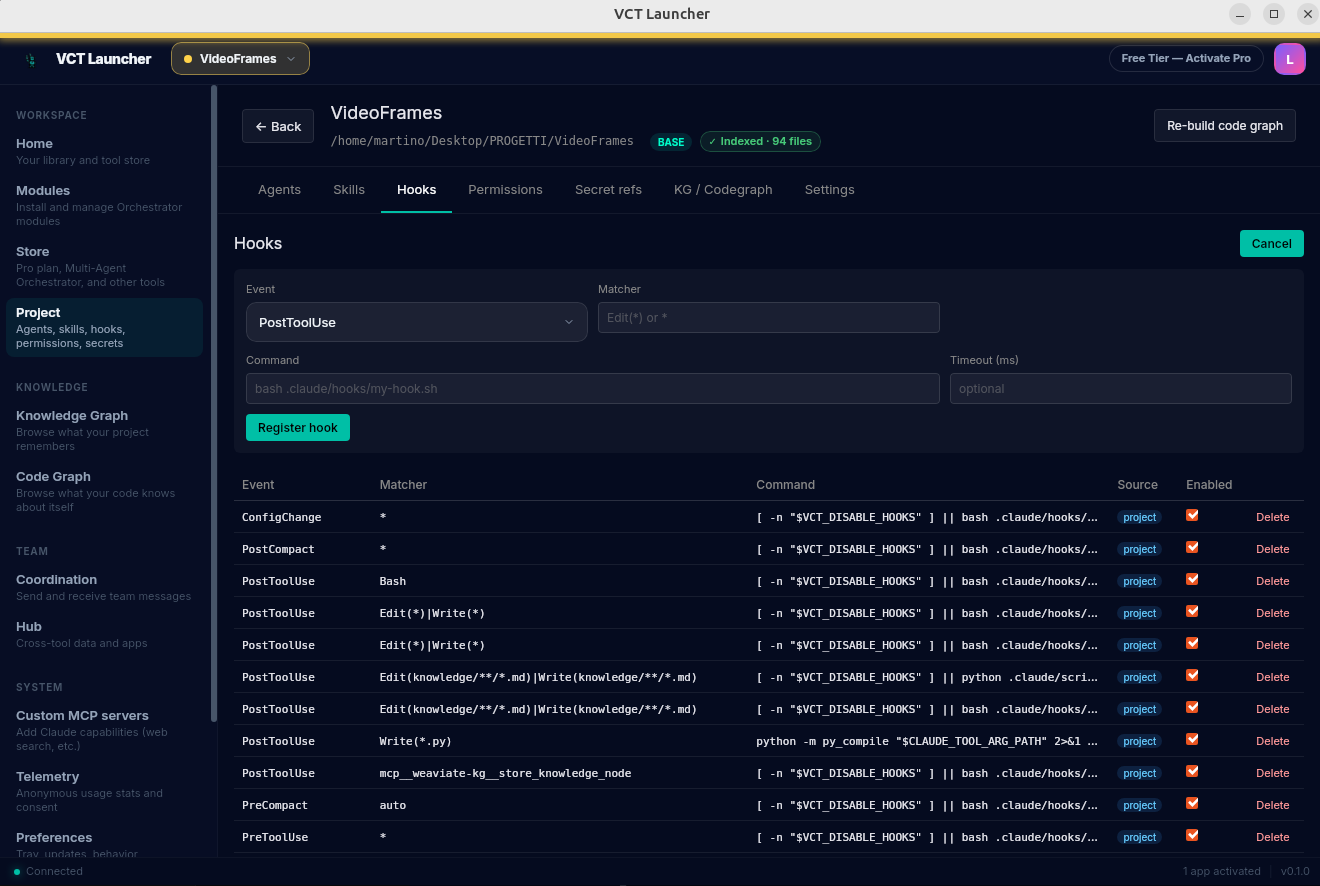
Permissions tab — allow/deny lists for agent tools
By default agents have broad access; tighten down for sensitive projects. 5 distinct rule kinds give fine-grained control:
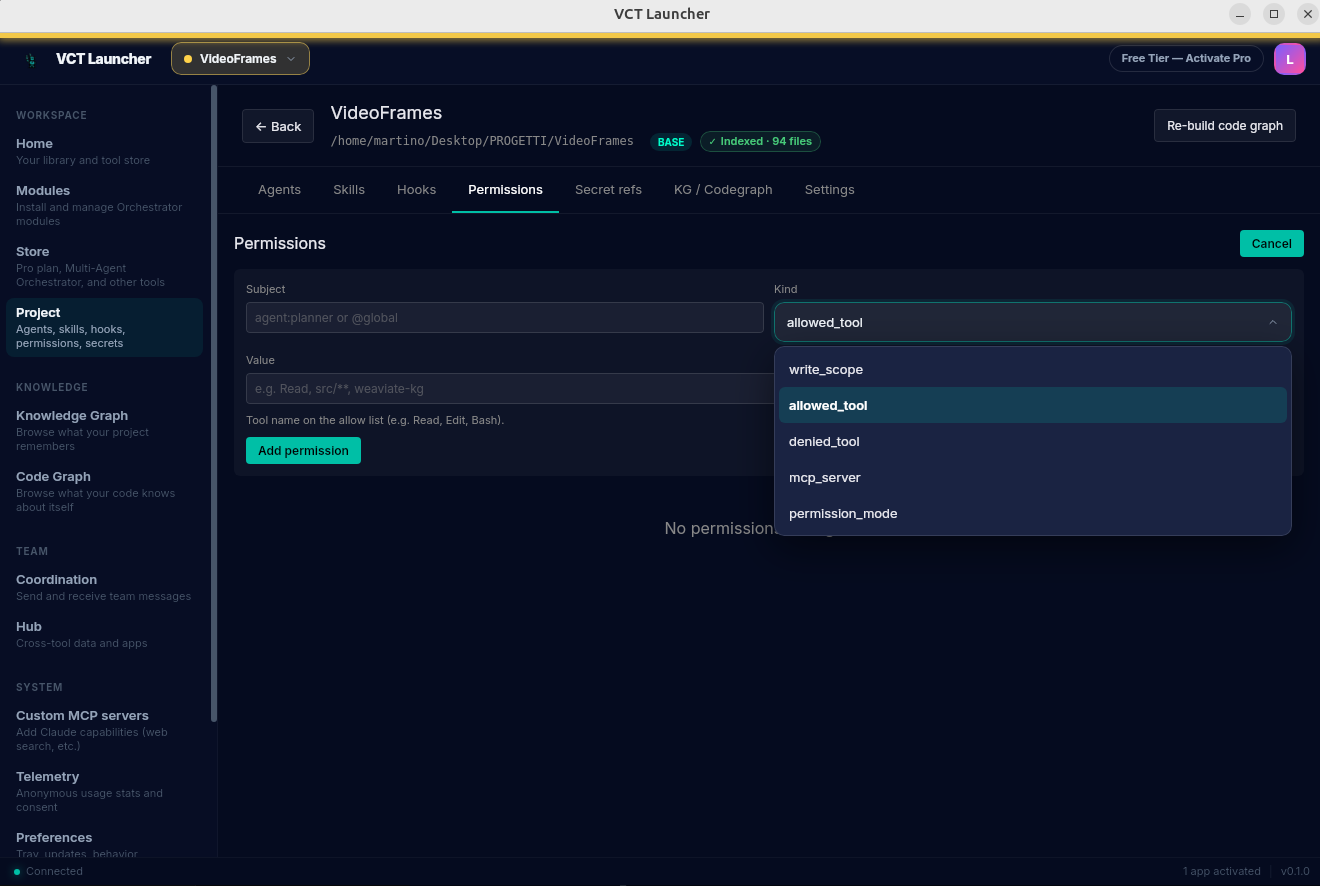
agent:planner, @global, etc.). Kind: write_scope, allowed_tool, denied_tool, mcp_server, or permission_mode. Value: the tool name, glob pattern, or MCP server ID.Secret refs tab — per-project env vars (GITHUB_TOKEN, etc.) ⭐
Most workflows need at least GITHUB_TOKEN for repo operations and possibly OPENAI_API_KEY if you use OpenAI as a fallback model. The launcher tracks which keys this project needs; values live in your OS keychain, not in any VCO file. The launcher itself only stores the reference, never the plaintext.
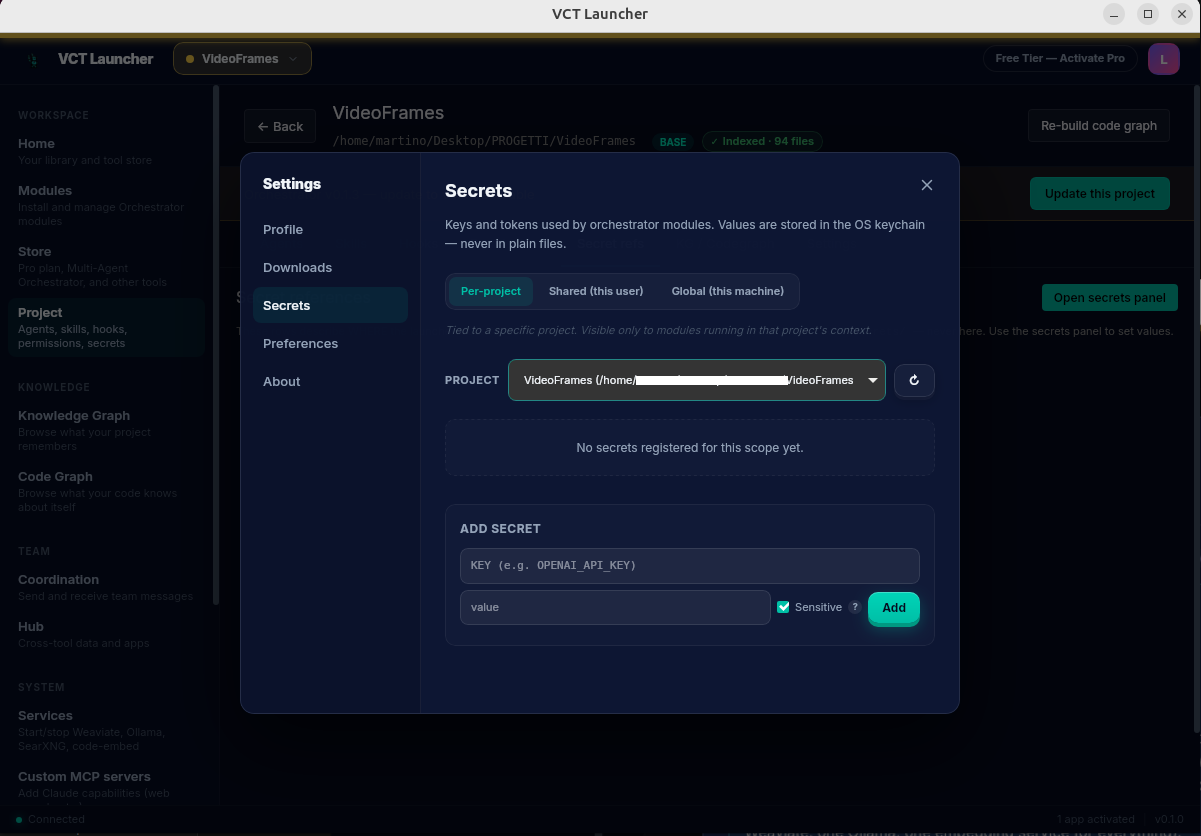
Three scopes
- Per-project: only this project's modules can read it. The form has a project dropdown, KEY, and value. Pick the project from the dropdown (only registered projects appear; click ↻ to refresh). Use this for project-specific tokens like a per-project GitHub PAT.
- Shared (this user): all of your projects can read it. The form is just KEY and value (no project picker). Use this for tokens shared across all your work, e.g. a personal OpenAI key.
- Global (this machine): any project on this machine can read it. Same form. Use this for machine-wide things like a license key.
Read order (how modules find a secret)
When a module in project P asks for a secret K, the launcher checks in order:
- Per-project bag for P (P's secrets)
- Shared collection (your other projects' shared secrets)
- Global (machine-wide)
First hit wins. A module in P never sees a different project's per-project bag — that's the project-isolation guarantee.
The "Sensitive" checkbox
Default ON, and almost always what you want.
- Sensitive ✓ (checked): the launcher refuses to display the value anywhere, even masked previews are blocked. You'll only see
set/not setbadges. Use for tokens, API keys, passwords. Recommended for anything secret. - Sensitive ☐ (unchecked): the launcher can display a masked preview (e.g.
gh***xx) in audit logs and the panel. Use only for non-secret config strings (URLs, usernames, model names) you'd want to verify by glancing at logs. Don't uncheck for tokens.
Lifecycle: Set / Unset / Reactivate / Remove
Each registered secret has four operations:
- Set / Update: write a value to the keychain and mark the entry active.
- Unset: mark the entry inactive but keep the value safely in the keychain. Useful for token rotation: pause without losing the value, validate the new state, then re-activate. The value is never returned to readers while inactive.
- Reactivate: appears as a one-click button on inactive entries. Flips the entry back to active using the saved keychain value, no re-entry needed. Use "Set as new value" instead if you want to replace the saved value.
- Remove: drop the entry registry row AND clear the keychain. The confirmation modal suggests "Use Unset instead if you just want to clear the current value." Choose Remove only when you don't expect to use this key again.
KG / Codegraph bindings tab ⭐
Decides which Weaviate collection this project's hybrid_search and code-graph queries hit. The wizard pre-fills sensible defaults but verify these on day one — wrong setting → "I can't find my notes" confusion.
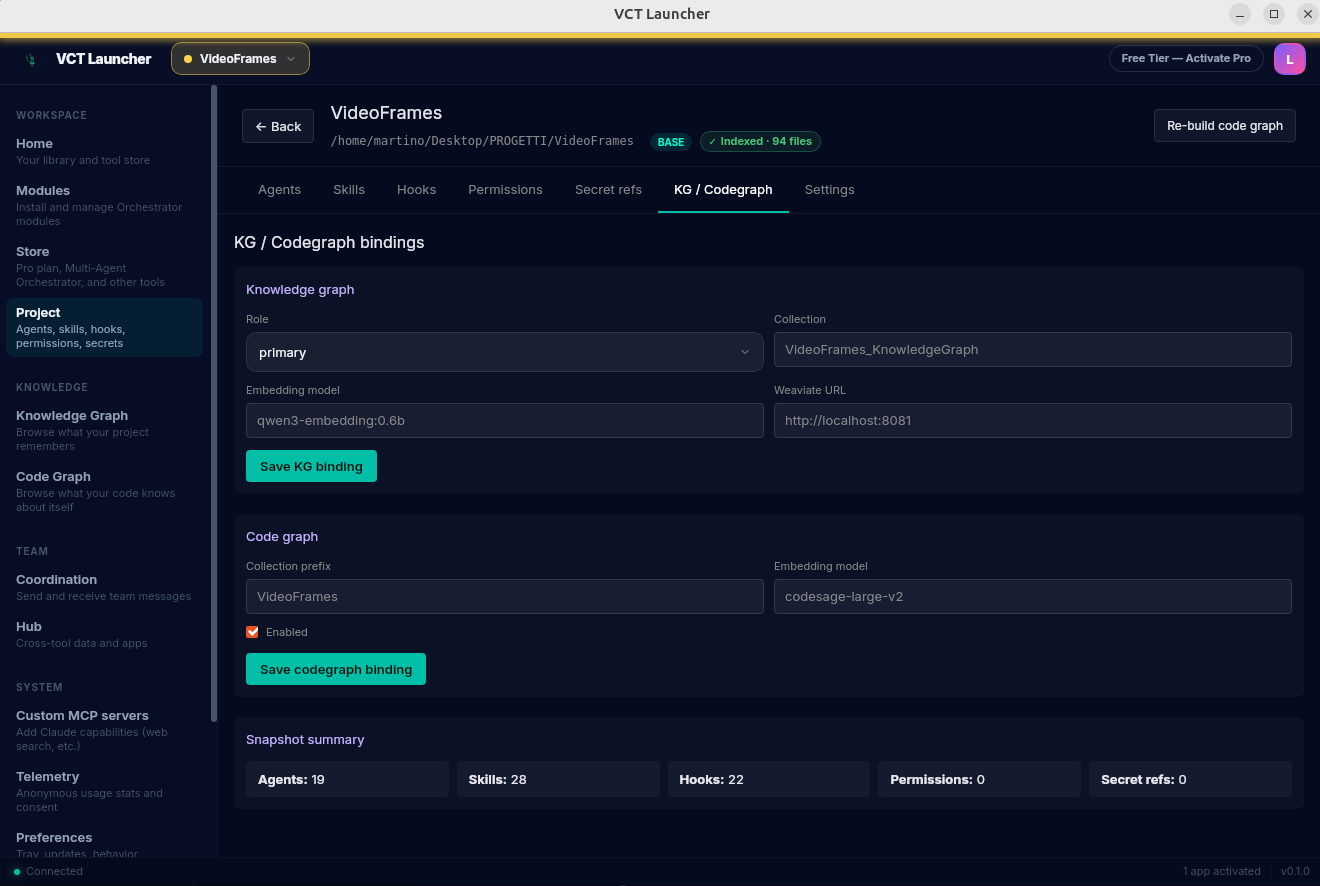
primary / shared / archive), Collection name, Embedding model, Weaviate URL. Code graph (middle): Collection prefix, Embedding model, Enabled checkbox. Snapshot summary at bottom shows counts at a glance.- Role: primary — this project owns the KG; other projects can read but not write into it. Default for new projects.
- Role: shared — multiple projects write into one KG (e.g. a shared "personal notebook" collection). Useful when you want cross-project synthesis.
- Role: archive — read-only; the project can search the KG but never adds to it.
- Embedding model:
qwen3-embedding:0.6bfor text (default;openai-text-embedding-3-smallis also available when an OpenAI key is configured in the wizard or in Preferences). For code:codesage-large-v2(GPU, default), with a chained fallback toqwen3-embedding:0.6b→jina-embeddings-v2-base-codewhen the code-embed service or GPU isn't reachable. - Codegraph prefix: namespaces the project's code-graph entities. Default is the project slug, usually fine.
Settings tab — metadata + project env-var notes
Edit the project name, see folder/host/created-at, and (importantly) keep a notes-only list of env vars your agents expect. Handy for onboarding teammates onto a project without leaking values.
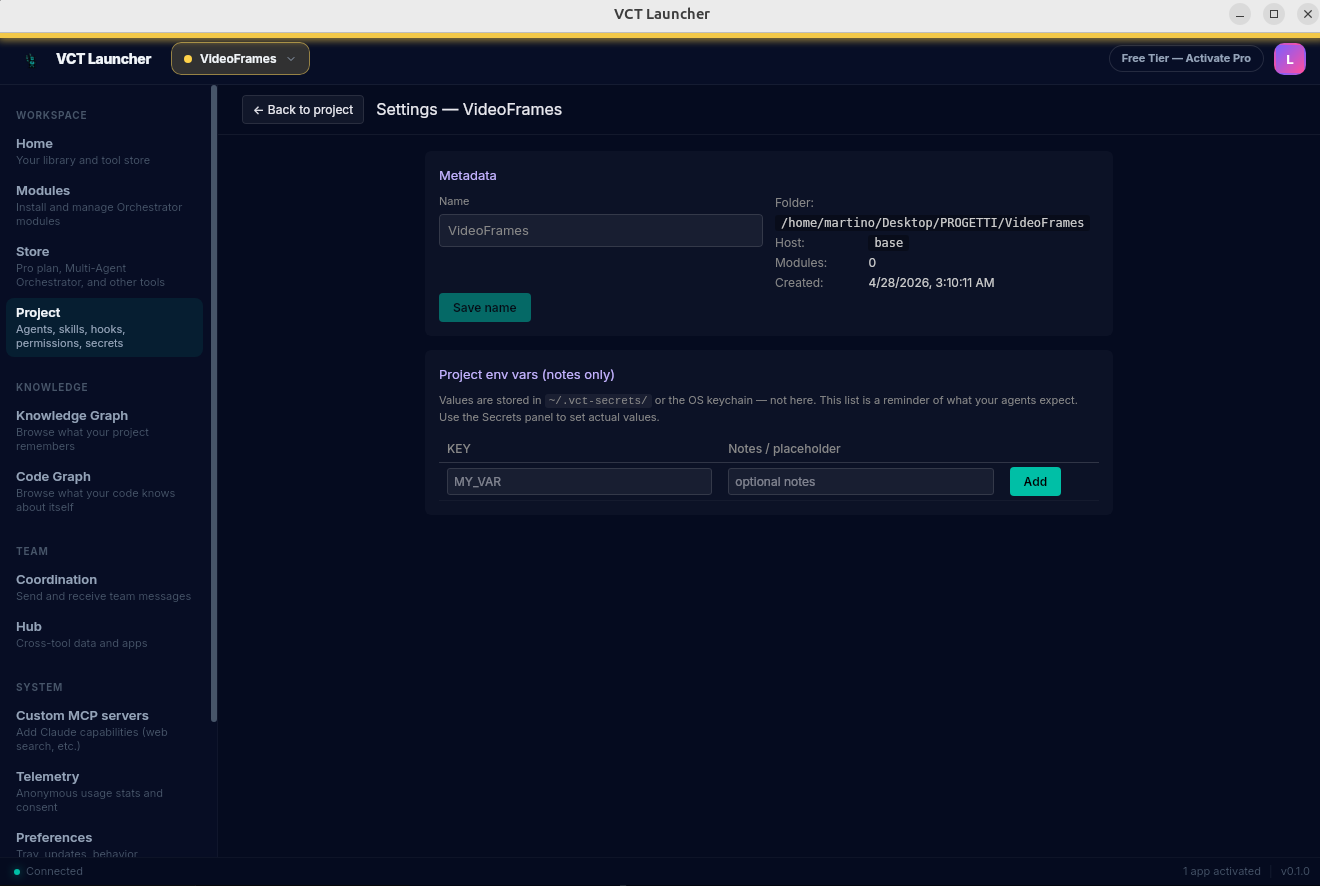
vct CLI under tools/vct-secrets/ uses flat files under ~/.vct-secrets/ for users who prefer a file-based workflow.Top-level routes worth knowing
Beyond the per-project tabs, the launcher's left sidebar has a SYSTEM section with these top-level routes:
Services — manage the shared containers
Start/stop the Weaviate vector DB, the Ollama LLM server (embeddings + summarization), and the code_embed service from one page. The launcher auto-detects services already running (e.g. started by another VCO install or by a previous podman-compose up -d) and treats them as external · adopt, so there's no double-management.
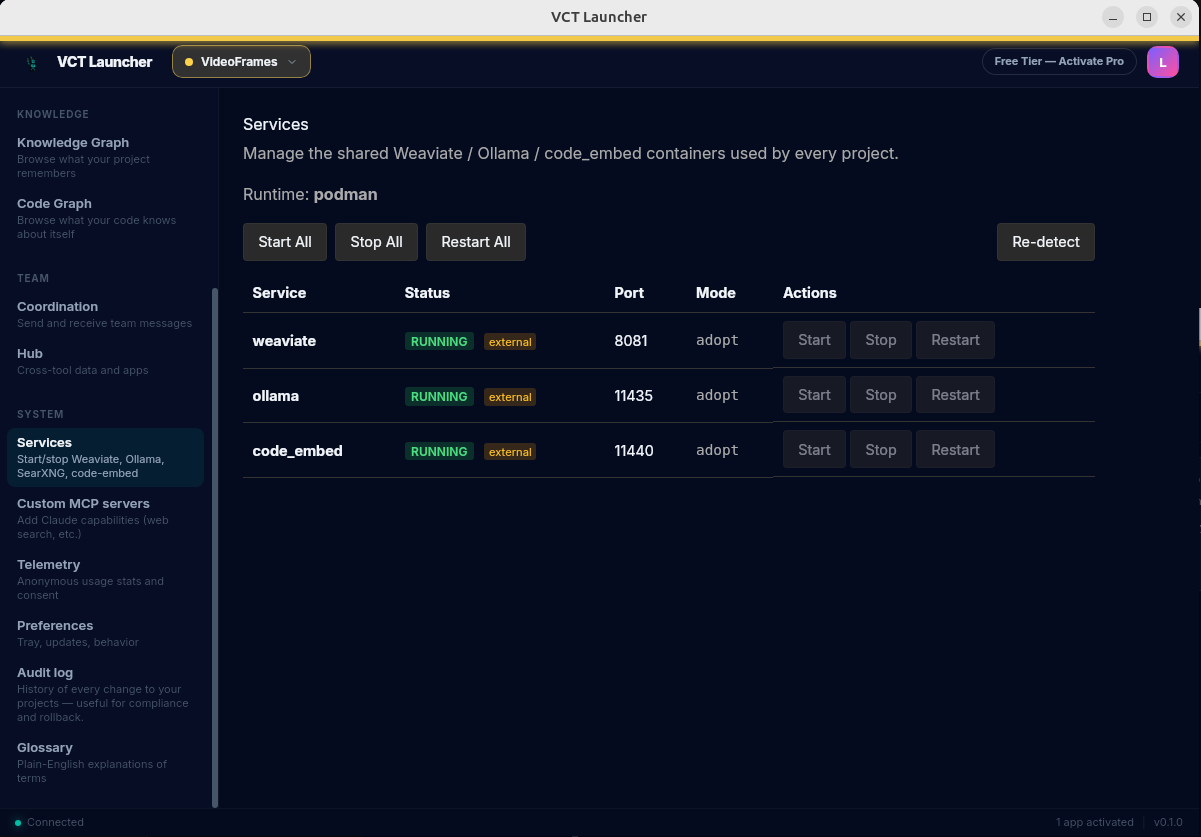
MCP servers — Claude's capability dashboard
Shows every Model-Context-Protocol server registered with Claude Code. The launcher registers 4 default-enabled servers — the same set you'll see from claude mcp list: weaviate-kg (Knowledge Graph + Code Graph, semantic search via hybrid_search / search_code_graph), search (academic papers via OpenAlex + arXiv through search_papers), coordination (local KG-backed team notes), and playwright (browser automation, registered via npx -y @playwright/mcp@latest — opt out with VCT_SKIP_PLAYWRIGHT=1). Ollama runs as embedding infrastructure (consumed by weaviate-kg + the code-embedding service), not as an MCP tool exposed to Claude. Add custom MCP servers from this page too.
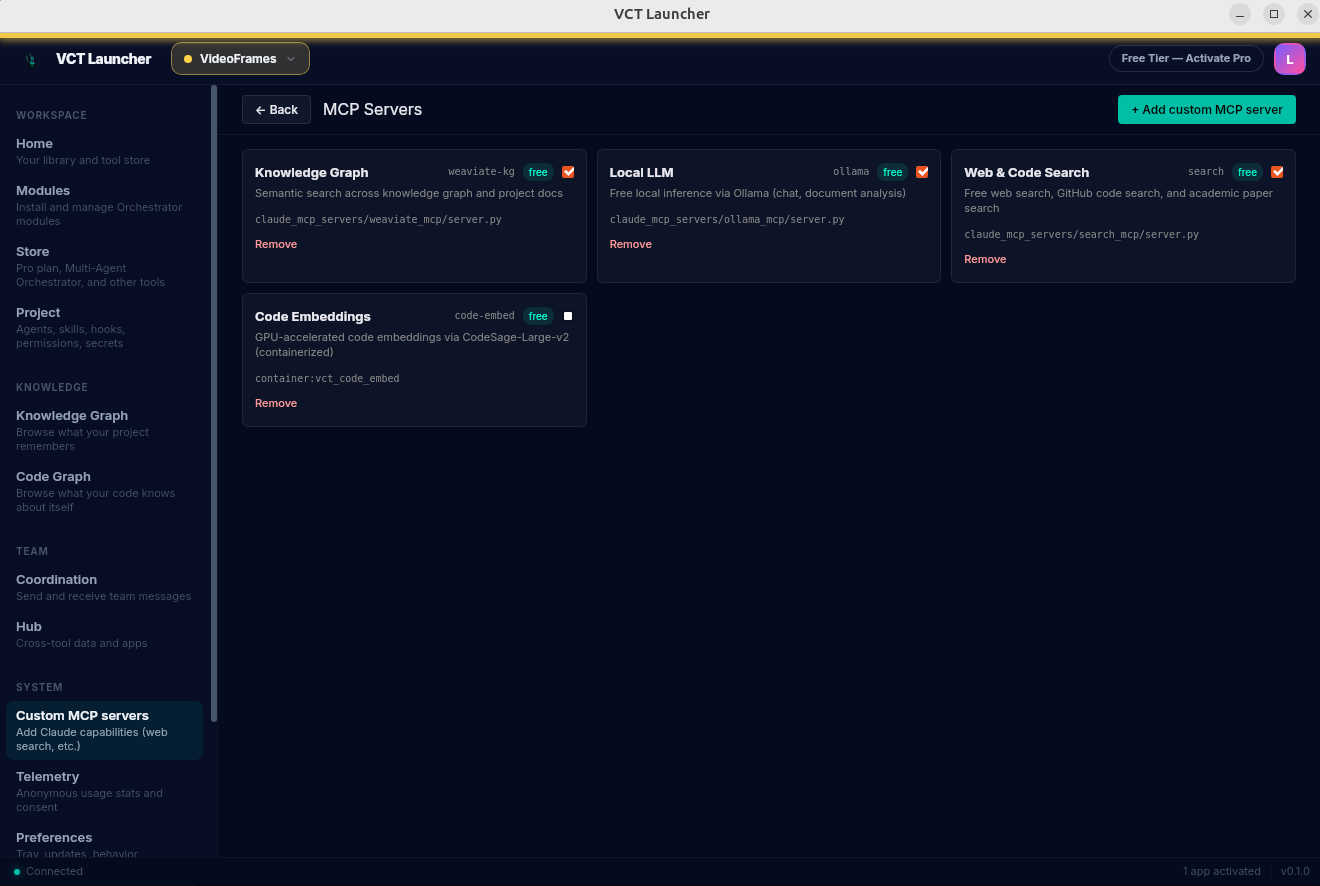
/mcp. Each card shows the server's role, its config path, and a Remove button. Default-enabled servers have a green checkmark.Other routes
| Route | Purpose |
|---|---|
/preferences | Default model, theme, update channel, plus a Manage GitHub token panel to set, update or clear the PAT without re-running the wizard. Re-run the onboarding wizard from here if you skipped a step. |
/audit | History of every config change. Useful for compliance reviews. |
/coordination | Send/receive team messages (vct-coordination MCP). |
/hub | Cross-tool integration bus served by the vct-hub binary (HTTP API on 127.0.0.1:7700, configurable via VCT_HUB_PORT). The binary is detached from the launcher GUI: install.py starts it, the session-start-ensure-hub.sh Claude Code hook starts it on every session, the VS Code folderOpen task starts it, and the GUI starts it too — it outlives the GUI when you close it. The hub requires Authorization: Bearer <token> on every /api/v1/* route except /health; the token is regenerated on each hub startup and persisted to ~/.vct/hub.token (mode 0o600). Main endpoint for apps: GET /api/v1/projects/{id-or-slug}/config (resolves KG collection, code-graph prefix, embedding model). Single-instance lockfile at ~/.vct/hub.pid. Bundled wrappers and the vco CLI handle authentication automatically; custom scripts must read the token file fresh on every call. |
/glossary | Plain-English explanations of terms used throughout the launcher. |
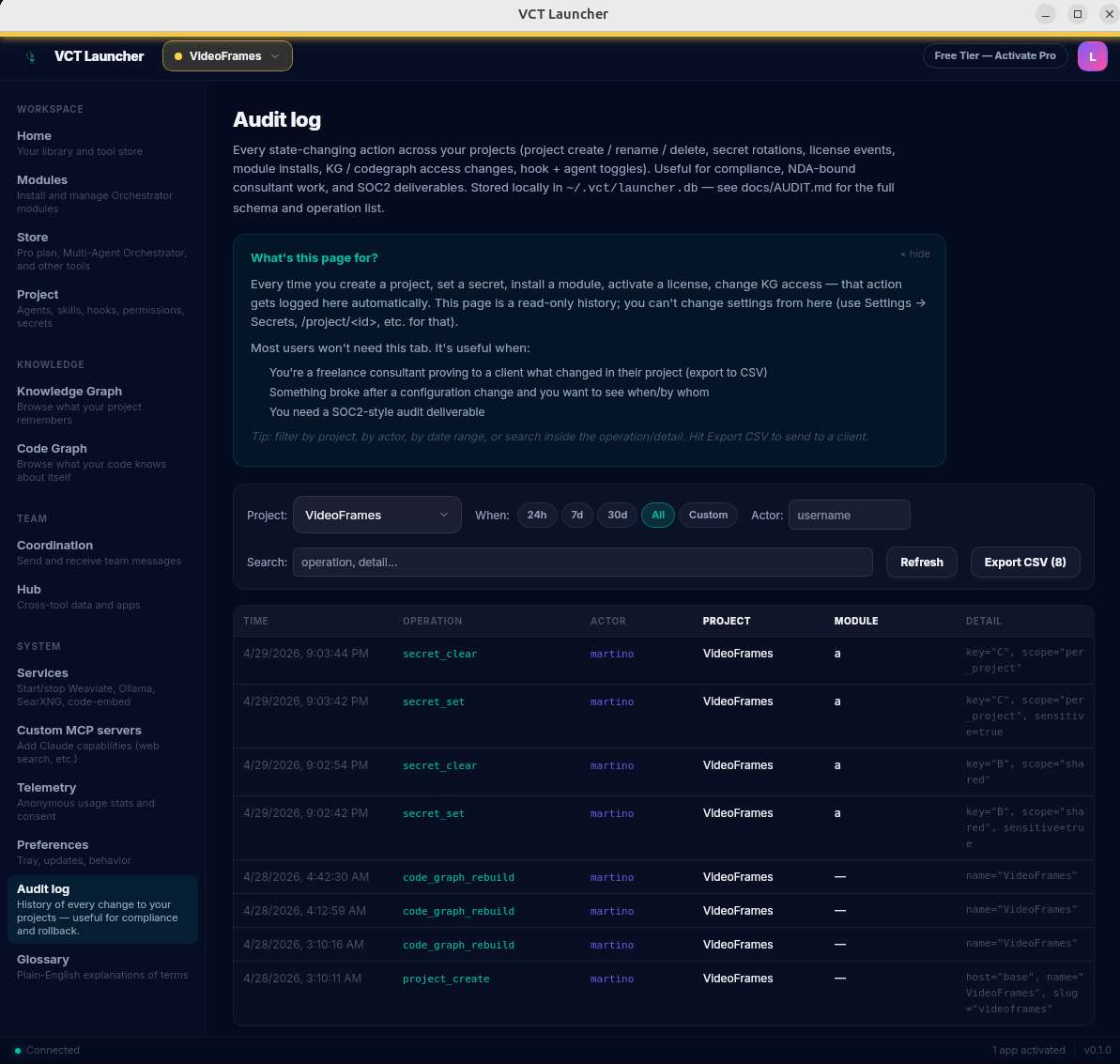
/audit. Every config change is recorded with timestamp, actor, operation, and a JSON detail blob. Useful for compliance reviews.Things to know that aren't in the GUI
KG_COLLECTION env var that an embedded Claude Code session reads. That's controlled per-workspace by .vscode/settings.json in your project folder. If you have multiple projects open in VS Code, each needs its own .vscode/settings.json with the correct KG_COLLECTION. Easy to miss.~/.local/share/containers/storage/volumes/ on Linux user-mode, similar on macOS/Windows). To relocate them, open Settings → Preferences → Volume location: the launcher runs a dry-run with size estimate, ETA and free-space check, copies with cp -a, writes a bind-mount override to infrastructure/docker-compose.override.yml and VCT_VOLUMES_PATH in .env, and only removes the legacy volumes after Weaviate and Ollama health-checks pass. If the migration fails partway, the data stays where it was.Troubleshooting
Container runtime detected but not running
You have Docker or Podman installed but the daemon isn't started.
# Linux Podman:
systemctl --user start podman.socket

# Linux Docker:
sudo systemctl start docker
Python is 3.10 or older
VCO requires Python 3.11+. The installer will offer to install Python 3.12 via your system package manager (apt / dnf / pacman). You can also install via pyenv before running the installer.
16 GB RAM and "OOM" warnings during model load
The default Ollama KG-summary model (qwen3.5:9b) needs ~24 GB practical headroom; on 16 GB systems the launcher auto-falls back to gemma4:e4b. For code embeddings, the codesage-large-v2 → qwen3-embedding:0.6b → jina-embeddings-v2-base-code chain kicks in automatically when the code-embed service or GPU isn't reachable. To force the lightest backend, set CODE_EMBED_BACKEND=ollama.
"Could not connect to localhost" on launch
The bundled launcher binary's frontend is missing or broken. Fix:
bash scripts/build-bundled-launcher.shthen restart. The 4-layer build defense prevents this from recurring on fresh builds.
For more, see KNOWN_ISSUES.md and INSTALL_RECOVERY.md.
Next steps
- Try a real workflow: open one of your actual projects in VS Code with Claude Code, register it via the launcher, and watch the orchestrator populate KG and code graph as you work for an hour.
- Read the User Guide — explains each tab in the launcher.
- Star the GitHub repo and follow Discussions. The first 100 stars are the slog.
- Found a bug? File an issue. Want a feature? Open a Discussion under "Ideas".